// thinkorswim import
Your thinkorswim Trading Journal
Your thinkorswim trades — spreads, fees, expirations — live in one Account Statement. Export it from the Monitor tab, drop it in, and TickerScribe puts the pieces together: spreads grouped, fees matched to their fills, expired contracts closed.
Account Statement in · spreads stay spreads · 100% free
// how-to-export
From the Monitor tab to your journal
Four steps, about two minutes.
- 01
Open the Account Statement
In the thinkorswim desktop platform, go to the Monitor tab → Account Statement.
- 02
Set your date range, export to file
Pick the period you want, then use the export option (top right) to save the statement as a CSV.
- 03
Drop the file into the Import Wizard
Settings → Import Data, drag the file in. It's identified as thinkorswim automatically — sections, spreads, and all.
- 04
Preview & commit
See every trade before anything is saved. Duplicates are flagged and skipped, then trades post to the ledger — spreads grouped, strategies detected.
// auto-detected
Spread legs, fees, expirations — reassembled.
thinkorswim scatters a trade's story across the statement — legs in one section, fees in another, expirations in a third. TickerScribe reads them together. Here's what happens to each line.
Account Trade Historysection found,Exec Time,Spread,Side,Qty,Pos Effect,Symbol,Exp,Strike,Type,…columns mapped,6/08/26 10:21:14,SINGLE,SELL,-1,TO OPEN,UBER,18 SEP 26,96,PUT,…option · sell to open,6/05/26 09:47:32,VERTICAL,SELL,-2,TO OPEN,AMD,21 AUG 26,185,PUT,…spread · leg 1,,,BUY,+2,TO OPEN,AMD,21 AUG 26,180,PUT,…spread · leg 2 re-attached6/01/26,02:05:11,RAD,Removed due to Expiration … EXP: -1.0 .RUTW…expired · closed at 06/05/26,…,TRD,…,Misc Fees -0.13, Commissions & Fees -1.07fees matched to fills,6/03/26 11:02:45,FUTURE,BUY,+1,TO OPEN,/ESU26,…futures · skippedThe Account Trade History and Cash Balance sections are read together — trades from one, their fees and expirations from the other.
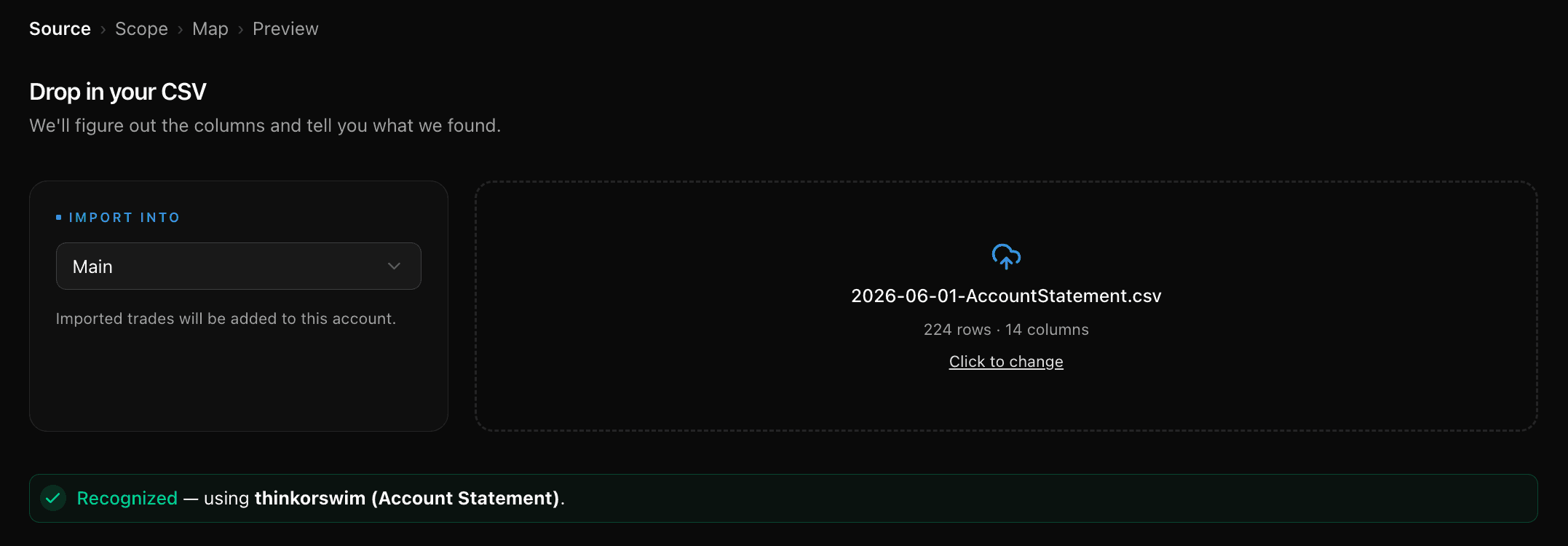
The moment it lands: recognized, reassembled, ready to preview.
Options — spreads included
thinkorswim writes spread legs as continuation rows with a blank execution time. TickerScribe re-attaches each leg, then groups them back into one position — verticals, calendars, and 30+ detected strategies, with per-leg P&L.
Stocks
Buys and sells with quantities and prices — fractional shares included.
Commissions & fees, matched back
The trade history section has no commission column — fees live in Cash Balance, which is why the Account Statement is the export to use. TickerScribe matches them back to each fill by date, time, and symbol, and splits them across spread legs proportionally.
Expirations, closed automatically
Cash-settled index options close at their settlement value; options that expire worthless close at zero — both synthesized from the statement's Cash Balance section, so no position is left dangling.
paperMoney and Excel re-saves work
Practice-account statements import like live ones, and a statement that's been opened and re-saved in Excel is still recognized — reformatted dates and padding are tolerated.
Two limits, plainly: futures rows are skipped with a notice (not a supported asset class), and cash transactions like deposits and dividends don't import from this statement. Everything else lands in one import.
Two minutes from the Monitor tab
Every spread, every fee, accounted for
No credit card required. Export one statement, drop it in, and your spreads arrive as spreads.
Frequently Asked Questions
Is TickerScribe really free?
Which thinkorswim files does TickerScribe auto-detect?
How are multi-leg spreads handled?
The trade history has no commission column. Do fees come across?
What happens to options that expire, get assigned or get exercised?
Does paperMoney work? What about futures and cash movements?
thinkorswim is a Schwab platform — should I use the Schwab export instead?
- Interactive BrokersThe Transaction History statement — multi-currency normalized, FX legs filtered.
- SchwabBoth exports work — transaction history and per-holding lot details.
- FidelityOne Accounts History file — options, stocks, and cash, with option symbols decoded.
- RobinhoodThe activity report — options parsed from plain text, cash included.
- TradeStationThe trades report — compact option symbols decoded automatically.
- tastytradeThe transaction history — partial fills merged, quoted premiums restored, expirations closed.
- WebullThe order-history export — only filled orders, at their average fill price; unfilled orders set aside.
- AlpacaYour trade activity as a CSV — every fill and partial fill imported at the exact price it executed.
- WealthsimpleThe Activity export — stocks, options, and cash from one file, with per-contract premiums normalized.
- Trade RepublicThe Transaction export — savings-plan fractions, the whole cash ledger, splits netted and name changes followed.
- E*TRADEThe Transaction History CSV — options, stocks and cash, with the contract read from the description rather than the underlying.
- M1The Activity export — fractional notional orders priced from the cash they actually moved.
- Every other broker & journal — the universal CSV mapper
// keep exploring
Explore More Features
Options Journal
30+ strategies, rollover chains, Greeks & IV, per-leg P&L.
Stock Journal
Position grouping, cost basis methods, and one-click logging.
Short Selling
A sell that opens the position, a buy-to-cover that closes it, P&L the right way round.
Daily Journal
Notes, plan & reflection, mood, tags, and chart screenshots — per day.
Trade Notes
Notes, tags, and screenshots per trade — and a scoreboard of how each setup performs.
Performance Dashboard
KPIs, cumulative P&L chart, and portfolio overview.
P&L Calendar
Shareable daily P&L heatmap with drill-down.
Trade Analysis
Price ranges, day-of-week P&L, and time-of-day patterns.
Wheel Analysis
Puts, covered calls, and assignments — stitched into cycles with annualized return.